How to Use Dashlane with the SyncBackPro Secrets Manager
If your organisation uses Dashlane, you can keep your backup credentials there instead of typing them into each profile. SyncBackPro can read a login, a secure note or a Dashlane secret and use it in a profile, for example as an SFTP password, a cloud account password or the password for an encrypted Zip file. The profile holds only a reference to the Dashlane item, not the value. When a password changes, you change it once in Dashlane and every profile that uses it picks up the new value on its next run.
Dashlane has no web API for the contents of a vault, because a vault is only ever decrypted on your own devices. SyncBackPro therefore uses the official Dashlane CLI (dcli.exe), a free and open source program from Dashlane, and signs in with it as a non-interactive device. The Secrets Manager is only available in SyncBackPro. It is not in SyncBackSE or SyncBackFree. Support for Dashlane was added in SyncBackPro V12.
TL;DR
Create a Dashlane account used only by SyncBackPro and share just your backup credentials with it. Install the signed Dashlane CLI and the Visual C++ Redistributable, register a device with dcli devices register, and copy the device keys it prints. In SyncBackPro add a Dashlane connection with those keys, create secrets that point at the Dashlane items, and pick them in your profiles with Use a secret. The Dashlane CLI cannot use a proxy server, and you should not rename an item once a profile uses it.
Table of Contents
What you need
- A Dashlane account used only by SyncBackPro. Dashlane itself recommends a separate account for non-interactive devices. Share with it only the items your profiles need.
- A master password on that account. Passwordless accounts and accounts that use single sign-on (SSO) cannot be used. The account must also not be set to ask for a one-time password at every login.
- The Dashlane CLI for Windows, version 6.2412.0 or later. You need the signed download, dcli-win-x64-signed.exe, not dcli-win-x64.exe.
- The Microsoft Visual C++ Redistributable for Visual Studio 2015-2022 (x64). The Dashlane CLI will not start without it.
- 64-bit Windows. Dashlane does not make the CLI for 32-bit Windows.
- Direct Internet access to Dashlane. The Dashlane CLI cannot use a proxy server (see Limitations).
Setting up Dashlane for SyncBackPro
Dashlane may change these steps, and device registration in particular is the part most likely to change. The steps below were correct when this article was written. The definitive instructions are on the Dashlane CLI web site.
Step 1: Create a dedicated account
Create a new Dashlane account for SyncBackPro and give it a master password. Then share with it the logins and notes that your backup profiles need, and nothing else. Your staff carry on using their own accounts, and the account SyncBackPro signs in with only ever sees what you have shared with it.
Step 2: Install the Dashlane CLI
Download dcli-win-x64-signed.exe from the Dashlane CLI releases page (linked from Dashlane's installation instructions). Rename it to dcli.exe and save it somewhere every Windows account that runs your profiles can read, for example C:\Program Files\Dashlane CLI\dcli.exe. To check it works, open a command prompt and run:
"C:\Program Files\Dashlane CLI\dcli.exe" --versionIt should print a version number. If it says The specified module could not be found, install the Visual C++ Redistributable (x64) and try again.
Step 3: Register a device for SyncBackPro
In the same command prompt, run:
"C:\Program Files\Dashlane CLI\dcli.exe" devices register "SyncBack"You are then taken through these steps:
- Enter the email address of the dedicated Dashlane account.
- The command shows a web address. It does not open a browser for you, so copy the address into one yourself, and sign in as the dedicated account if asked. The page gives you a token, a long code made of letters, digits and dashes. Enter it at the prompt Please enter the token given in the browser.
- Dashlane emails a 6-digit code to the account. Enter it at the next prompt. If the account uses an authenticator app for two-factor authentication, enter the code from the app instead.
- Enter the master password of the account.
The command then prints a line like this:
DASHLANE_SERVICE_DEVICE_KEYS=dls_...Copy everything from dls_ to the end of the line. These are the device keys. They are shown only once, so paste them straight into SyncBackPro (next section) rather than leaving them in a text file.
Creating the connection in SyncBackPro
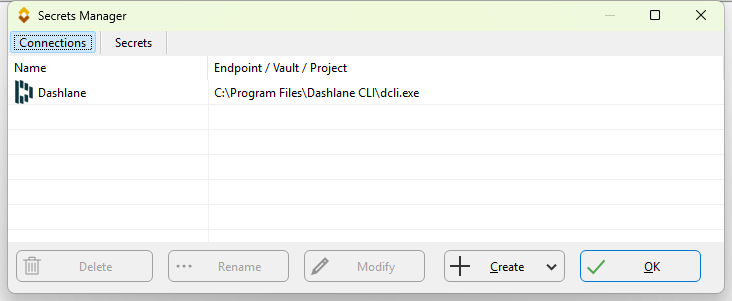
- Run SyncBackPro, click the burger menu
 and choose Secrets Manager.
 - On the Connections page, click Create and choose Dashlane.
- You are asked for each of these in turn:
- Name: a name for the connection, for your own reference.
- Path to dcli.exe: where you saved the Dashlane CLI. If you leave it blank, SyncBackPro looks for dcli.exe on the path.
- Device Keys: the keys from step 3, starting with dls_.
SyncBackPro connects straight away and lists the items in the vault, so you find out immediately if anything is wrong. The first time takes a little longer while the vault is downloaded.
Creating secrets and using them in a profile
A connection gives SyncBackPro access to the vault. A secret tells it which item, and which part of that item, to use. One connection can be used by many secrets, and one secret by many profiles.
- In the Secrets Manager, go to the Secrets page, click Create and choose Username, Password or Private Key.
- If you have more than one connection, choose the Dashlane one. Then pick the item by its Name (its title in Dashlane) from the list that SyncBackPro reads from the vault, and click OK.
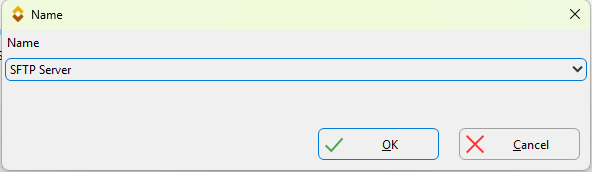
- A Description is filled in with the item type, such as Login or Secure Note. Change it if you like; it is for your own reference.
- For a login, a Key dialog asks which part to use: login, email or password (login and email are only offered when the item has them). A secure note or secret has only its text, so you are not asked. Click OK.
- Now open the profile, either in the New Profile Wizard or with Modify. Beside a field that can take a secret, for example the SFTP password, click the drop-down button and choose Use a secret. Pick the secret and click OK.
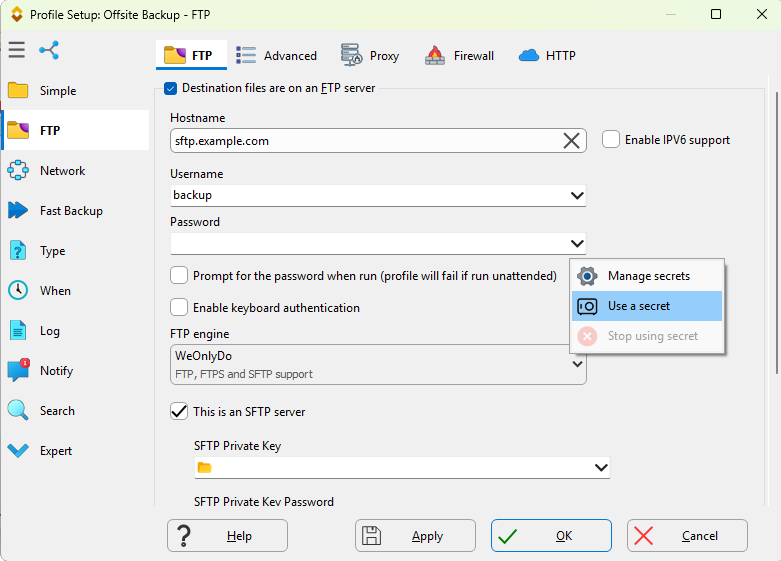
The hint on the drop-down button shows which secret the field is using. The same menu has Manage secrets and Stop using secret, and once a secret is in use, Use a secret becomes Change secret, followed by the name of the secret.
These settings can take a secret: FTP and SFTP username and password, the SFTP private key and its password, email username and password, the compression (Zip) password, the password for a log file sent by email, backup email username and password, network username and password, and cloud username and password. SSE-C cloud encryption keys count as passwords.
A connection cannot be deleted while a secret uses it, and a secret cannot be deleted while a profile uses it. Deleting a secret in SyncBackPro does not delete anything in Dashlane.
Which Dashlane items can be used
- Logins: the login, the email or the password.
- Secure notes: the whole text of the note. This is the place to keep an SFTP private key.
- Secrets: the whole text. The Secrets item type is only available to members of a Dashlane business organisation on the Password Management or Credential Protection plan. Logins and secure notes are in every plan.
Passkeys, payments, IDs and attachments cannot be used.
Item titles matter
SyncBackPro finds a Dashlane item by its title and nothing else. A login with no title is listed by its web site address. The title must match exactly, including upper and lower case. This has two consequences you should know about before you start.
First, if you rename an item in Dashlane, every profile that uses it fails with Secret does not exist until you modify the secret in SyncBackPro and select the item again under its new title.
Second, and more serious, if you later give a different item the old title, SyncBackPro will use that item from then on without any warning. So once a profile uses an item, do not rename it and do not reuse its old title. Give every item a unique title. If a login and a secure note (or a secure note and a secret) share a title, the login is used before the secure note, and the secure note before the secret. But two items of the same kind with the same title, for example two logins, are refused with an error rather than guessed at, because the username and password could otherwise come from different items.
Security
The device keys are as sensitive as the master password
SyncBackPro stores the device keys, encrypted, in its program settings, in the same way as the details of any other connection. Be clear about what they are: the device keys contain the master password of the Dashlane account. Anyone who could decrypt the SyncBackPro settings could therefore open every item that account can see. That is why the account should be a dedicated one holding only backup credentials.
If you change the master password, the device keys stop working. Register a new device and modify the connection to use the new keys.
What is stored, and where
- The value of a secret, including a username, is never stored by SyncBackPro and never shown on screen. The profile holds a hidden reference to the secret, much like a variable.
- Exporting a profile does not give whoever imports it access to the secret.
- SyncBackPro only gives the device keys to a dcli.exe that carries Dashlane's own digital signature. That is why the signed download is required.
- Each time it connects, SyncBackPro gives the Dashlane CLI a private temporary folder and deletes it afterwards. Nothing is written to Windows Credential Manager.
- During a profile run, an encrypted copy of the vault is kept in that temporary folder, shared by all the Dashlane secrets that run uses. It is deleted when the profile finishes.
- SyncBackPro only reads from Dashlane. It never creates, changes or deletes items.
Do not share the account with your own use of the Dashlane CLI
If you also use the Dashlane CLI yourself, do not sign in to the same Dashlane account with it under the same Windows account that SyncBackPro runs as. SyncBackPro removes the Windows Credential Manager entry that the Dashlane CLI keeps for that account, which would sign you out.
Revoking access
To stop SyncBackPro retrieving secrets, remove its device from the Dashlane account. Dashlane names it Non-Interactive - SyncBack (after the name you gave in step 3). You can revoke it in the Dashlane web app under Settings, Manage activity, or with the Dashlane CLI:
dcli devices list
dcli devices remove <device id>
Scheduled and unattended runs
SyncBackPro does not use any Dashlane login saved in your Windows profile. A Dashlane connection therefore works in the same way when SyncBackPro is run normally, run elevated, run under Windows Administrator Protection, or run from a scheduled task, whether the user is logged on or not, and including tasks that run at startup.
What matters is the Windows account the profile runs as. That account must be able to read dcli.exe and reach Dashlane directly over the Internet. If it is an ordinary (non-administrator) account used by a scheduled task, it also needs the Windows Log on as a batch job right, or the task never starts. That is a Windows requirement, not a Dashlane one, but it is the usual reason for a scheduled profile that never ran.
Limitations
- Read only. SyncBackPro cannot add or update items in Dashlane.
- Every profile run that uses a Dashlane secret signs in and downloads the vault. This takes several seconds (7 to 8 seconds is typical) and needs Internet access. It happens once per run for each connection, not once per secret.
- The Dashlane CLI cannot use a proxy server. It ignores the Windows proxy settings and the HTTPS_PROXY environment variable. The computer, and the account the profile runs as, need direct HTTPS access (port 443) to *.dashlane.com.
- Passwordless accounts, SSO accounts, and accounts that ask for a one-time password at every login cannot be used.
- Passkeys, payments, IDs and attachments cannot be used.
- Items are found by title only, so renaming an item breaks the profiles that use it.
Troubleshooting
| Message | Cause and fix |
|---|---|
| The specified module could not be found | The Visual C++ Redistributable (x64) is not installed. Install it. |
| The Dashlane CLI (dcli.exe) was not found | The path is wrong, or it is blank and dcli.exe is not on the path, or the account the profile runs as cannot read the file. |
| The Dashlane CLI is version ... | The CLI is too old to use device keys. Download the latest version. |
| ... is not the Dashlane CLI as signed by Dashlane | This is the unsigned download (dcli-win-x64.exe), or the file has been changed, or it is a different program. Download dcli-win-x64-signed.exe again. dcli.exe cannot be replaced while a profile is using it, so update it when nothing is running. |
| The Dashlane CLI needs 64-bit Windows | Windows is 32-bit. Dashlane cannot be used on that computer. |
| Error while verifying the master password | Usually the device keys are wrong, the device has been removed from the account, or the master password has changed since the device was registered. Register a new device and modify the connection to use its keys. But if the message ends with a network code such as ECONNREFUSED, ETIMEDOUT or ENOTFOUND, the keys are fine. The Dashlane CLI could not reach Dashlane, so treat it as the next row. |
| Did not finish within 120 seconds | The computer, or the account the profile runs as, cannot reach Dashlane. Check the Internet connection and the firewall. On a network that only allows Internet access through a proxy server, allow direct HTTPS access to *.dashlane.com. |
| More than one Dashlane login is called ... | Two items of the same kind have the same title. Rename one of them so every title is unique, then, if needed, modify the secret in SyncBackPro and select the item again. |
| Secret does not exist | The item has been renamed or deleted, or is no longer shared with the account. Modify the secret and select the item again. |
| No secrets are listed | The account has no logins, secure notes or secrets. Check that the items have been shared with it. |
| A scheduled profile never ran | If the task runs as an ordinary user, check that the account has the Windows Log on as a batch job right. |
Bitwarden, Dashlane or 1Password?
If you already use one of these password managers, use that one. If you are choosing, these are the differences that matter for backups:
| Bitwarden | Dashlane | 1Password | |
|---|---|---|---|
| SyncBackPro talks to | The Bitwarden CLI on the same computer | The Dashlane CLI on the same computer | Your own Connect server |
| Plan needed | Any, including the free plan | Any (the Secrets item type needs a business plan) | Individual, Teams or Business (Connect is included at no extra cost) |
| What SyncBackPro stores (encrypted) | API key and master password | Device keys, which contain the master password | An access token for your Connect server |
| Proxy server | Yes, through HTTPS_PROXY | No, needs direct Internet access | Not needed if the server is on your network |
| SFTP private keys | Yes (SSH key items or secure notes) | Yes (secure notes or secrets) | No |
| Beyond username and password | Custom fields, secure notes, SSH keys | Email, secure notes, secrets | Nothing |
Conclusion
Dashlane suits you if it is already your password manager and the computer running SyncBackPro can reach the Internet without a proxy server. There is no server to run: a dedicated account, the signed Dashlane CLI and one device registration are all it takes. After that your profiles no longer hold any passwords of their own, and a password change is made once, in Dashlane. Treat the device keys like the master password, keep item titles fixed, and remove the device from the account if you ever stop using it.
Further reading: