Windows SmartScreen and SyncBack: Why You May See a Warning
If you have just downloaded a new release of SyncBack and Windows has questioned it, this article explains what is happening, why the software is safe, how you can confirm that for yourself, and how to continue with the installation.
TL;DR
When you download or install a brand new release of SyncBack, Windows SmartScreen may briefly describe it as an unrecognised or rarely downloaded app. This is not a sign that anything is wrong. SmartScreen bases that message on how widely a specific file has been downloaded so far, and a release that has only just been published has not yet built up that history. Every SyncBack installer and program file is digitally signed by 2BrightSparks using Microsoft's own Azure Artifact Signing service, so you can confirm it genuinely came from us and has not been altered. The warning clears on its own as more people install the release. Until then you can check the signature yourself and continue by clicking More info and then Run anyway.
Table of Contents
- What is Windows SmartScreen?
- Why a new SyncBack release can trigger SmartScreen
- Every SyncBack file is digitally signed
- How to confirm SyncBack is genuine and safe
- Keeping the download in Microsoft Edge
- How to install past the SmartScreen warning
- Antivirus false positives
- Why the warning cannot be switched off instantly
- Software you can trust
- Conclusion
What is Windows SmartScreen?
Microsoft Defender SmartScreen is a safety feature built into Windows and Microsoft Edge. When you download and run a program, SmartScreen checks it against a reputation service that Microsoft maintains. If the file is already well known and widely used, it runs without comment. If the file is new, or has not been seen on many machines yet, SmartScreen shows a cautionary message, usually the blue "Windows protected your PC" dialog, and asks you to confirm before continuing.
The key point is that this is a reputation check, not a virus scan. SmartScreen is not telling you that it found anything harmful in the file. It is telling you that the file is not yet familiar to it.
Why a new SyncBack release can trigger SmartScreen
We release updates to SyncBack regularly. Each new version is a brand new file with its own unique digital fingerprint. From SmartScreen's point of view, a file it has never seen before starts with no download history, regardless of who made it or how trustworthy the previous version was.
For the first day or two after a release, relatively few people have downloaded that exact file. SmartScreen treats that low download count as "unrecognised" and shows the warning. As more of our users install the update, the file's reputation builds up automatically and the warning stops appearing. This is why the issue is temporary, and why it tends to affect only the newest releases.
One of our users described it well in a recent message. Windows had thrown up "multiple hurdles and blocks, referencing unrecognized or seldom downloaded apps", to the point where they were "second guessing whether the site had been hijacked". That reaction is completely understandable, which is exactly why we wrote this article. Nothing was wrong. The release was simply new.
This is not just our description of the process. Microsoft documents it directly:
In Microsoft's own words
"Even when signed, a newly created binary could still show a SmartScreen warning until its hash or publisher certificate accumulates sufficient evidence of positive reputation."
The warning stops only once a file has built up "sufficient download history", which Microsoft notes "can take several weeks and hundreds of clean installs from a wide audience".
Source: Microsoft, SmartScreen reputation for Windows app developers.
Every SyncBack file is digitally signed
We code sign every SyncBack installer, and every executable inside it, using Microsoft's own Azure Artifact Signing service. A digital signature does two things. It confirms the publisher, so you can see that the file genuinely comes from 2BrightSparks Pte. Ltd. and not from an impostor. And it guarantees integrity, so if even a single byte of the file had been altered after we signed it, for example by malware trying to attach itself to our name, the signature would break and Windows would refuse to trust it.
It is worth being clear about the limits of what signing does, because this is the part that surprises people. A valid signature proves who made the file and that it is intact. It does not, on its own, give the file an established reputation in SmartScreen. Reputation is earned through download volume over time. So a freshly released, correctly signed SyncBack file can still show the "unrecognised app" message for a short while, even though it is signed by us through Microsoft's own Azure Artifact Signing service. The signature and the SmartScreen reputation are two separate things, and the warning is about the second one, not the first.
How to confirm SyncBack is genuine and safe
You do not have to take our word for it. You can check any SyncBack download yourself in a few seconds:
- Check the publisher in the warning. When the SmartScreen dialog appears, click More info. The publisher should read 2BrightSparks Pte. Ltd. If a file ever claims to be SyncBack but shows an unknown or different publisher, do not run it.
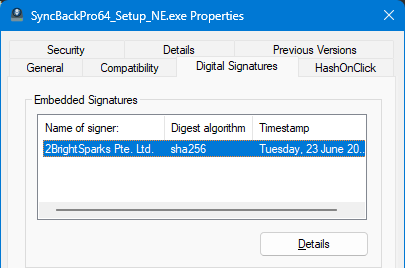
- Check the digital signature. Right-click the downloaded installer, choose Properties, and open the Digital Signatures tab. You should see a signature from 2BrightSparks Pte. Ltd. listed, and clicking Details should report that the digital signature is OK.
- Download only from our official website. Always get SyncBack from www.2brightsparks.com. Files from third-party mirrors and download portals can be repackaged or out of date, and we cannot vouch for them.
- Scan it if you wish. You are welcome to upload the file to an online scanner such as VirusTotal. See the note on false positives below for how to read the results.
What a valid SyncBack signature looks like
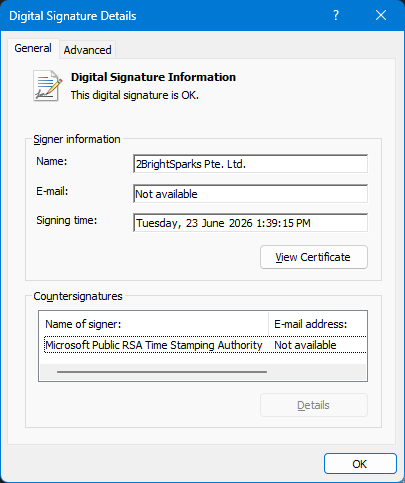
These screenshots show the digital signature on a SyncBackPro installer, exactly as Windows displays it. The signatures on your own download should look the same.
On the Digital Signatures tab of the file's Properties, the signer is listed as 2BrightSparks Pte. Ltd., using the sha256 digest algorithm:
Selecting the signature and clicking Details confirms that "This digital signature is OK", and shows that it is timestamped by the Microsoft Public RSA Time Stamping Authority:
Clicking View Certificate shows the certificate was issued to 2BrightSparks Pte. Ltd., for the purpose of ensuring the software came from the publisher and has not been altered after publication:
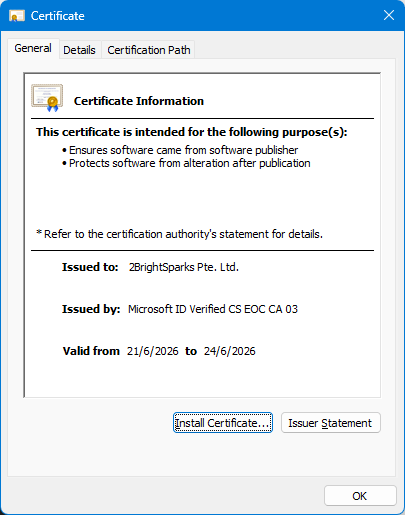
You may notice the certificate itself is valid for only a few days. This is normal for Azure Artifact Signing, which issues short-lived certificates. Because each signature is timestamped at the moment of signing, by the Microsoft timestamping authority shown above, it stays valid long after the certificate's own dates have passed.
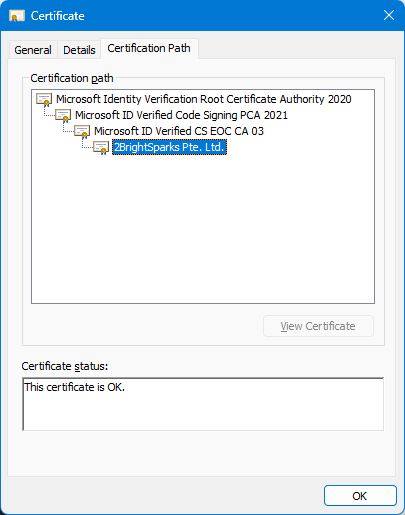
Finally, the Certification Path tab shows that the certificate chains up to Microsoft's own root authority, reflecting that it was issued through Microsoft's Azure Artifact Signing service, with a status of "This certificate is OK":
Keeping the download in Microsoft Edge
SmartScreen does not only act when you run the installer. In Microsoft Edge it also checks the file at the moment you download it, before you have run anything. For a brand new release, Edge may flag the download in its Downloads panel with a note that the file "isn't commonly downloaded". As with the install-time message, this reflects how new the file is, not a problem with it.
Prefer to watch? This short video shows the whole process, from downloading the installer to keeping it past the warning.
To keep the file, open the Downloads panel using the download icon near the top right of Edge, find the SyncBack installer, and use its menu:
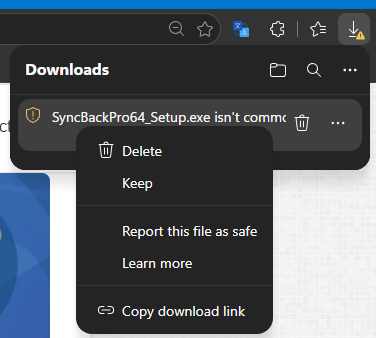
- Hover over the flagged download and click the ... (more actions) button, or right-click the download.
- Choose Keep to retain the file. Only do this for a file you downloaded from our official website.
Depending on your version of Edge, you may instead see a fuller message headed Make sure you trust [the installer] before you open it, where the only buttons shown are Cancel and Delete. The wording looks alarming, but the file is safe. The important thing is not to click Delete, which discards the download. To keep it, click the small arrow on the right of the Delete button and choose Keep:
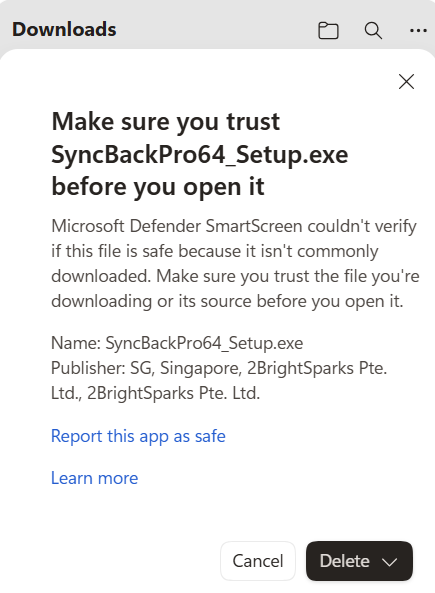
This message also shows the publisher as 2BrightSparks Pte. Ltd., which is a further confirmation that the file genuinely comes from us.
You may also choose Report this app as safe, which sends feedback to Microsoft. Other browsers, such as Google Chrome, run their own equivalent reputation check and may show a similar "not commonly downloaded" prompt with the same option to keep the file. Once the download is kept, you can run the installer, where you may then see the "Windows protected your PC" message described next.
How to install past the SmartScreen warning
If you have confirmed the file is genuine and you want to continue, the steps are straightforward:
- On the "Windows protected your PC" dialog, click the More info link.
- Confirm the publisher shows as 2BrightSparks Pte. Ltd.
- Click Run anyway to proceed with the installation.
SyncBack is available both as a system-wide installer, which installs for all users and requires administrator rights, and as a per-user installer. SmartScreen may prompt for each one separately, so you might see the message more than once if you install both. The procedure is the same in each case.
Antivirus false positives
A closely related situation is when an antivirus program, or an online scanner such as VirusTotal, flags a new SyncBack file. Typically this is a small number of engines out of many, for example two out of seventy. It happens for the same underlying reason as the SmartScreen warning. Some antivirus engines treat any new, not-yet-common file that installs software or schedules tasks as suspicious by default, using generic or heuristic rules rather than a match against a specific known threat. A brand new release fits that profile until it becomes widely established.
When the large majority of engines report the file as clean and the digital signature is valid, a couple of generic detections are false positives. If your antivirus blocks SyncBack, you can verify the signature as described above, add an exclusion if you need to, and report the false positive to your antivirus vendor so they can correct it. You are also welcome to contact us and we will look into it. For the current list of known false positives in specific antivirus products, each with steps to resolve it, see our No Nasties page.
Why the warning cannot be switched off instantly
A question we are often asked is why we do not simply tell Microsoft that SyncBack is safe so that the warning never appears. We do sign every release, which is the formal way of telling Windows who we are. But SmartScreen reputation is not something a publisher can set by hand or switch on for a specific file. It is calculated by Microsoft from real-world download data, and it builds on its own as a release spreads. There is no button that grants a new file instant trust. Microsoft's own developer guidance is explicit on this point: there is "no need (or mechanism) to manually submit a file for SmartScreen reputation review for consumer endpoints", and "reputation builds organically through download volume" (Microsoft documentation).
In practice, the most reliable way to avoid the warning is to give a new release a little time. Within a short period of a version going out, enough installs have taken place for SmartScreen to recognise it and stay quiet. If you would rather not wait, verifying the signature and using More info then Run anyway, as described above, lets you install straight away with confidence.
For business and IT administrators there are additional options. Software deployed through managed channels, such as Microsoft Intune, Group Policy, or your own software distribution system, can be approved centrally so that users never see the prompt. We would not recommend turning Defender SmartScreen off altogether, since it provides genuine protection against the many files that really are dangerous. Approving SyncBack specifically is the safer approach.
Software you can trust
The reassurance in this article does not rest on a single signature. 2BrightSparks has been developing utility software since the company was incorporated in 2004, more than twenty years of building and maintaining the same products. SyncBack in particular has been relied on continuously over that time by a wide range of users, from individuals protecting family photos to governments, the military, hospitals, universities, and large businesses, with hundreds of thousands of installations worldwide.
A company does not maintain that kind of standing by shipping anything harmful. Every release goes through the same signing and publishing process, and we act quickly whenever a security product reports one of our files in error. You can read more about who relies on our software on our Noted Customers and Testimonials pages, and about our commitment to clean software on our No Nasties page.
Conclusion
A SmartScreen warning on a new SyncBack release is a statement about how new the file is, not about whether it is safe. Every installer and executable we ship is digitally signed by 2BrightSparks using Microsoft's own Azure Artifact Signing service, the signature is easy to verify, and the warning clears by itself once the release has been downloaded by enough people. If you have reached this article because Windows questioned a SyncBack download, you can check the publisher and signature, click More info and Run anyway, and continue knowing that the software is genuine and unaltered.
If you are ever unsure about a particular download, please contact our support team. We would far rather answer a question than have anyone left wondering whether their backup software is safe.