SyncBackPro includes optional AI-assisted features that can help explain, debug, or optimize scripts. While these tools can be useful, they may occasionally produce incorrect, incomplete, or misleading information. This behaviour, often called AI hallucination, is a known limitation of all current AI technologies.
Please keep the following in mind:
•AI responses may contain errors or misunderstandings.
•Always review AI-generated or AI-modified scripts before using them.
•Do not rely on AI output as authoritative technical guidance.
•2BrightSparks cannot provide technical support for issues arising from AI-generated responses or scripts.
•Our support team cannot verify or debug content produced by the AI assistant.
Use the AI tools as helpful suggestions only. You remain responsible for confirming that any script or configuration is correct and safe for your specific use case.
Script Editor
Within the script editor window you can access various A.I features:
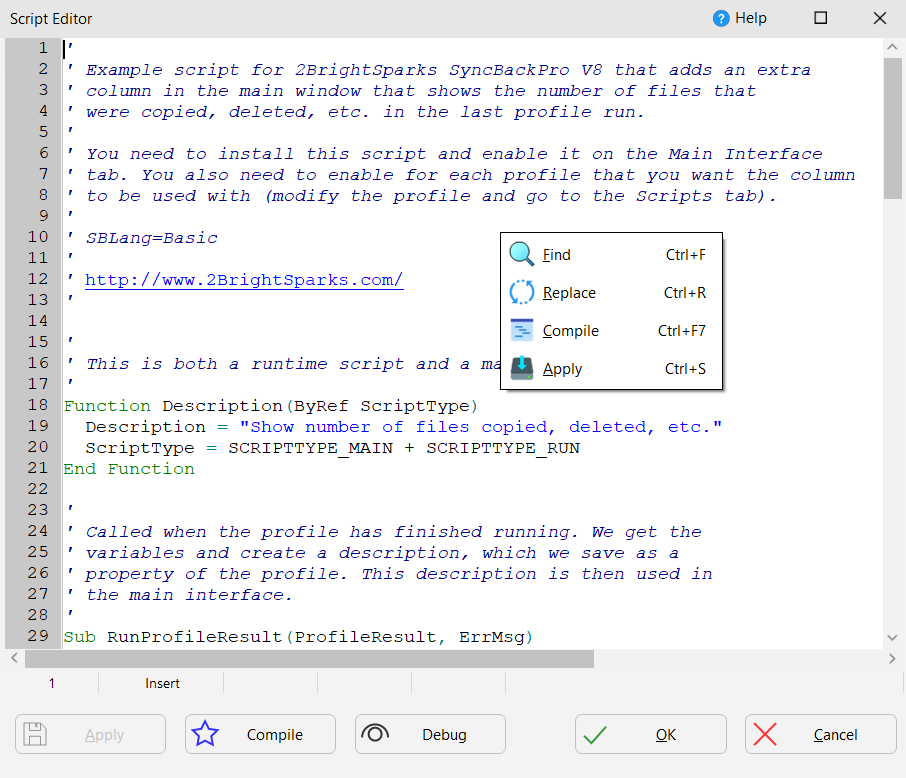
•AI Chat: Lets you chat to AI about anything. See AI Chat below.
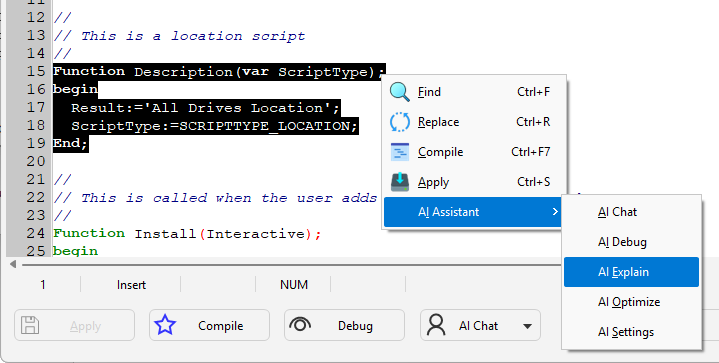
•AI Debug: If you have selected some code in your script, then choosing this will ask AI to try and find any bugs in that section of code. The AI Coder window will appear with the result.
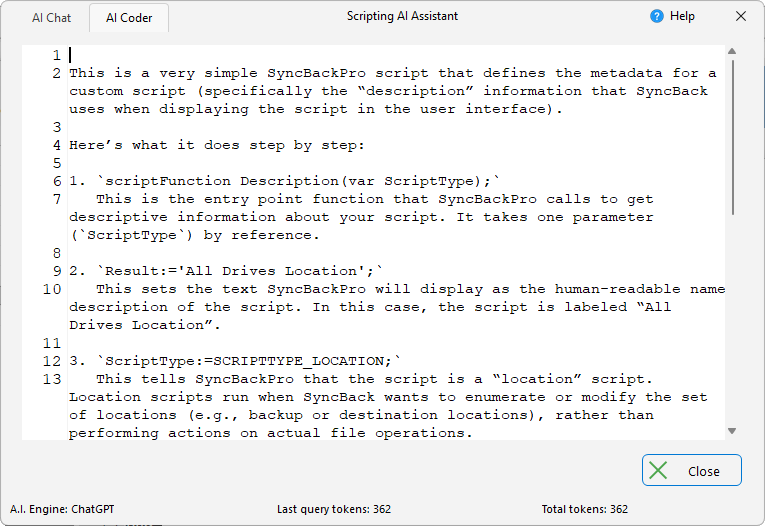
•AI Explain: If you have selected some code in your script, then choosing this will ask AI to explain the code. The AI Coder window will appear with the result.
•AI Optimize: If you have selected some code in your script, then choosing this will ask AI to try and optimize the code. The AI Coder window will appear with the result.
•AI Settings: Lets you define which AI engine to use (see AI Settings below).
Each of the above modes (except AI Settings) also has a Detailed variant that provides the AI with the complete SyncBackPro scripting reference for more accurate responses. See Detailed Modes below for more information.
You can access the AI Settings via the AI Chat button or the pop-menu in the script editor.
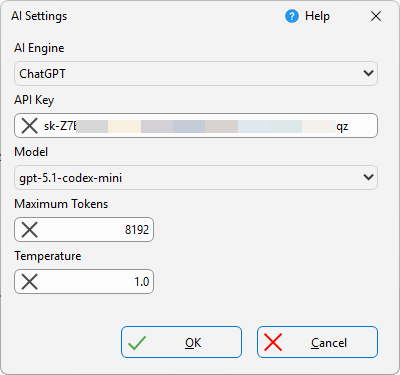
•AI Engine: SyncBackPro supports three A.I. engines: ChatGPT (Open AI), Claude (Anthropic) and Gemini (Google).
•API Key: For SyncBackPro to access the AI Engine, you need to create an API Key. Refer to their documentation for details on how to do this.
•Model: If you are using ChatGPT then you will be able to choose the model. Typically, models have different balances of cost and time, e.g. ones that need to reason for a longer time may give more accurate responses but will typically be more expensive. Refer to their documentation for details on the models.
•Maximum Tokens: If you are using ChatGPT then you will be able to specify the maximum number of tokens that can be used. Artificial intelligence tokens are simply small pieces of text that an AI uses to read, understand, and generate language. They are the basic units the AI works with, much like letters and words are the basic units of reading and writing for people. A rough, easy rule of thumb: 1 token is about 4 characters of English text, 100 tokens is roughly 70 to 75 words. In short, AI tokens are the “bite-sized” pieces of text that artificial intelligence uses to think in language.
•Temperature: If you are using ChatGPT then you will be able to choose the temperature. Note that not all models support a temperature. If they do not, use 1.0. The AI temperature is a setting that controls how predictable or creative an artificial intelligence model is when it generates text. In simple terms low temperatures give accuracy, stability, and reliable facts. High temperatures give creativity, variety, and unexpected ideas. The “temperature” does not make the AI smarter or dumber; it simply adjusts how adventurous or conservative its word choices are.
oLow Temperature (e.g., 0.0 to 0.3): Predictable and Precise. The AI chooses the most likely, sensible answer almost every time.
oMedium Temperature (e.g., 0.4 to 0.7): Balanced and Natural. The AI mixes accuracy with some creativity.
oHigh Temperature (e.g., 0.8 to 1.2+): Creative and Unpredictable. The AI becomes more imaginative and less predictable.
To simply chat to AI, first make sure you have configured it using the AI Settings (see above). If you have, enter your question in AI Prompt and then click Send:
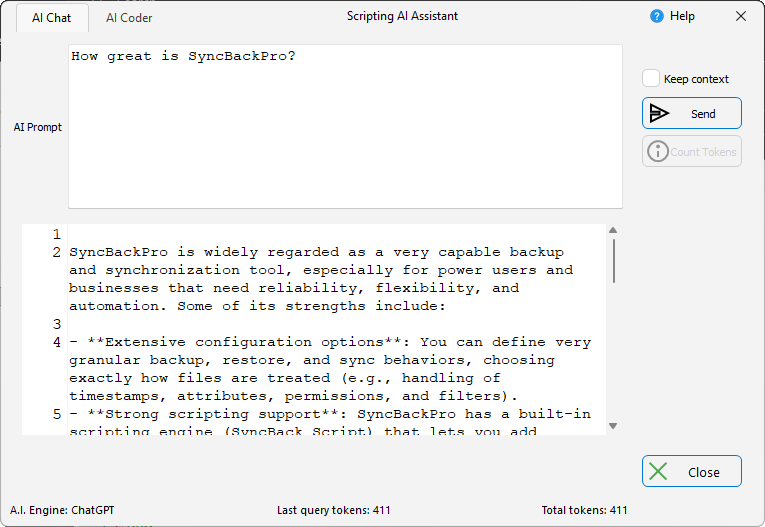
The response will be appended to any previous answers and SyncBackPro will automatically scroll to the end of the responses.
•Keep context: If enabled, it tells the AI to continue the same conversation instead of starting over, preserving short-term memory, consistency, and context.
The AI Coder page is shown when you highlight code in the editor and then choose a menu-item from the AI Assistant pop-up menu, e.g. AI Explain:
In addition to the standard AI modes described above, SyncBackPro also offers Detailed variants of each mode: AI Chat (Detailed), AI Create (Detailed), AI Debug (Detailed), AI Explain (Detailed), and AI Optimize (Detailed).
When a Detailed mode is used, SyncBackPro loads the SyncBackPro scripting reference documentation and includes it in the request sent to the AI engine. This gives the AI comprehensive knowledge of the scripting language, including all available functions, constants, objects, and their parameters. As a result, the AI can produce significantly more accurate and relevant responses compared to the standard modes.
Availability
The Detailed menu items will only appear in the AI Assistant menu if the scripting reference file SYNCBACKPRO_SCRIPTING_REFERENCE.md is present in the same folder as the SyncBackPro executable. If this file is missing, the Detailed options will not be shown. This file is included with the SyncBackPro installation.
Cost Warning
Because the scripting reference documentation is included with every request, Detailed modes use significantly more tokens than their standard counterparts. This applies to all AI engines (ChatGPT, Claude, and Gemini). Most AI providers charge based on the number of tokens used, so Detailed mode requests will be more expensive. A confirmation prompt is displayed before each Detailed mode request to remind you of the increased cost.
When to Use Detailed Modes
•Use the standard modes for general questions, quick explanations, or when cost is a concern.
•Use the Detailed modes when you need the AI to have accurate knowledge of specific SyncBackPro scripting functions, parameters, constants, or objects, for example when creating new scripts, debugging issues involving specific API calls, or when the standard mode gives inaccurate results.
All Content: 2BrightSparks Pte Ltd © 2003-2026