When running a profile, the Differences window lists all the files that will be copied, deleted, moved, and so on. Sometimes you may want to see exactly how two versions of a file differ before deciding what action to take. For example, you may have edited the same document on both the source and destination, and you need to decide which version to keep. SyncBackPro lets you launch an external comparison tool to visually inspect the differences between the two files.
The External file comparison tools window lets you tell SyncBack which external programs to use to visually compare files of various types.
Opening the Comparison Programs Window
There are two ways to open this window:
•Click the Burger Menu (the menu icon in the top-left corner of the main window) and select Comparison Programs
•In the Differences window, click the Comparison Programs button
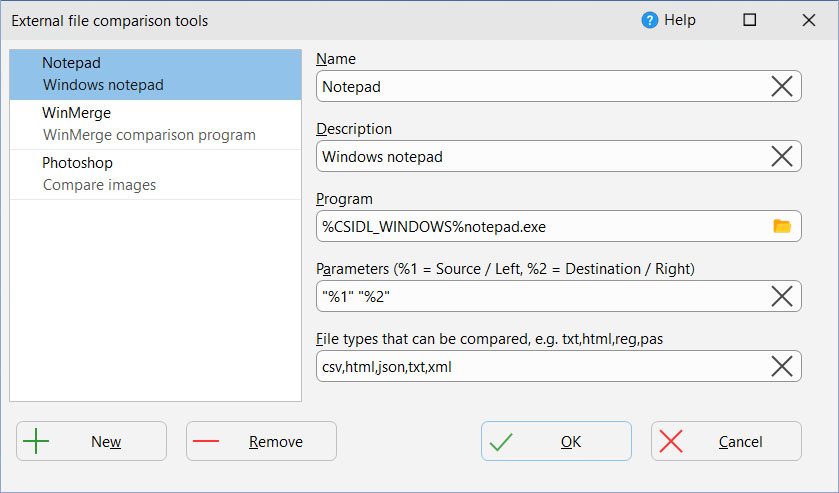
Settings
Each comparison program entry has the following settings:
•Name: A unique name for the entry. You can use whatever name you wish, e.g. Compare Word Documents
•Description: An optional description of the entry, e.g. Compares word documents
•Program: The complete path and filename of the comparison program. Windows environment variables can be used, e.g. %ProgramFiles%\WinMerge\WinMergeU.exe. If the program does not exist at the specified path then the text will be highlighted in red.
•Parameters: The command line parameters passed to the comparison program. There are two special placeholders: %1 represents the source/left filename, and %2 represents the destination/right filename. SyncBack will automatically replace these with the correct filenames. You will usually need to wrap them with double-quotes to handle file paths that contain spaces, e.g. "%1" "%2"
•File types that can be compared: A comma-delimited list of file extensions that this comparison program can handle. Do not include the leading period, e.g. use txt,c,h not .txt,.c,.h. When you compare a file, SyncBack uses this list to find the appropriate program. If multiple entries match the same file type, the first matching entry in the list is used.
Comparing Files in the Differences Window
Once you have configured one or more comparison programs, you can compare files from the Differences window:
1.Select one or more files in the Differences window
2.Press Ctrl-M, or right-click and select Compare from the pop-up menu
3.SyncBack will launch the appropriate comparison program based on the file extension
You can also configure the double-click action in the Differences window to compare files. If no suitable comparison program is configured for the file type, the files are opened instead.
|
When comparing files from remote locations (such as FTP servers, cloud storage, or SyncBack Touch devices), the files must first be retrieved to the local drive. This may cause a delay, especially for large files or slow network connections. |

Example Configurations
Below are examples of how to configure some popular comparison tools. Check each program's documentation for the most up-to-date command line options.
WinMerge (free, open-source)
•Program: %ProgramFiles%\WinMerge\WinMergeU.exe
•Parameters: "%1" "%2"
Beyond Compare
•Program: %ProgramFiles%\Beyond Compare 4\BComp.exe
•Parameters: "%1" "%2"
Notepad++ (with Compare plugin, free)
•Program: %ProgramFiles%\Notepad++\notepad++.exe
•Parameters: "%1" "%2"
Visual Studio Code (free)
•Program: %LocalAppData%\Programs\Microsoft VS Code\Code.exe
•Parameters: --diff "%1" "%2"
Tips
•You can create multiple entries for the same program to handle different file types. For example, one entry for text files (txt, csv, log) and another for source code files (c, h, pas, py).
•Many comparison tools can handle binary files (such as images or Office documents) as well as plain text. Check the documentation of your preferred comparison tool to see what file types it supports.
•If multiple entries match the same file extension, the first match in the list is used. You can reorder entries to set your preferred priority.
•Always wrap %1 and %2 in double-quotes in the Parameters field. File paths that contain spaces will not be passed correctly to the comparison program without them.
For more information about the Differences window, see The Differences Window.
All Content: 2BrightSparks Pte Ltd © 2003-2026